In this lesson
Save two separate DOCX drafts, use Undo to restore a mistaken edit and create a new document from a DOTX template.
Practice material
Start with the practice file. Open the worked answer after trying the exercise. CSV and text briefs are also available. All resources and import notes →
Example
The new-starter welcome memo
You need a welcome memo for four new colleagues attending the October induction. The team folder has Welcome-final.docx, Welcome-final2.docx and an old PDF, with no clear working draft. Start a new file in a local practice folder. Use invented names; you do not need a company account or cloud subscription.
How it works
DOCX is the file to keep editing. PDF is a copy for readers. DOTX is a template for starting new documents, and DOCM can contain macros. Choose the format that fits what you or the next person needs to do.
Home contains common text tools; Insert adds objects; Layout sets up the page; Review contains checking tools. Print Layout shows page boundaries. Undo fixes recent edits, but a saved copy lets you return to an earlier draft after you close Word.
Steps
Create a Blank document. Type “October induction”, followed by three short paragraphs headed Arrival, Equipment and First-week plan.
Choose File › Save As or Save a Copy. Save Induction-Working-v01.docx in a practice folder as a Word Document. Note the folder so you can find the file again.
Make the first line larger on Home. Look through Insert and Layout, then return to Home. Choose View › Print Layout and zoom until the page is comfortable to read.
Check the page and word counts on the status bar. Select a paragraph to see its word count. This is useful when a brief sets a length limit.
Replace “Equipment” with “Travel”, then use Undo to restore Equipment. Save the file. Undo works for recent actions in this editing session.
Save a second copy as Induction-Working-v02.docx and add a sentence there. Close and reopen both files. The added sentence should appear only in version 2.
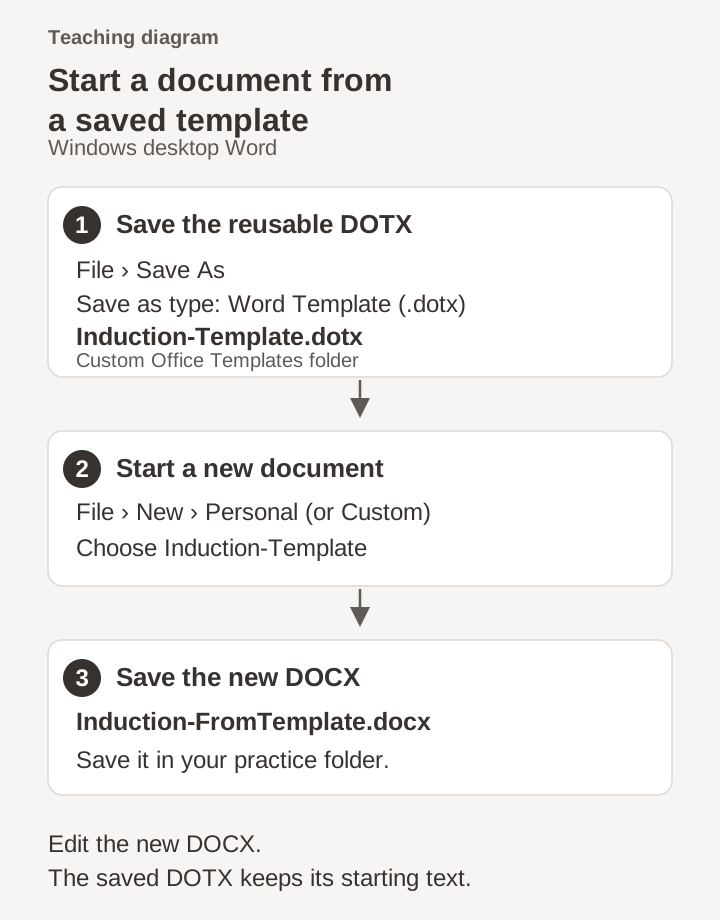
Choose File › Save As and select Word Template (.dotx). Name it Induction-Template.dotx and save it in Word’s suggested Custom Office Templates folder. Note that folder: it can differ from the practice folder holding your DOCX drafts.
Choose File › New › Personal (called Custom in some versions) and select Induction-Template. Save the new document as Induction-FromTemplate.docx in your practice folder. Add a sentence there, then check that the DOTX still has its starting text.
Try it yourself
- Make a one-page induction memo with three headings. Keep v01 and v02 DOCX drafts in the practice folder and the DOTX in Word’s template folder. Change only v02, then create a separately named DOCX from the template. Reopen the files to check which contains each change.
Show expected result
- The practice folder keeps the two original DOCX drafts and the separately named document created from the template. The DOTX is in the recorded template folder; version 1 still has its earlier text.
- File › New › Personal/Custom creates a document with the template’s starting layout. Changes saved to that new DOCX do not change the DOTX.
If something goes wrong
- AutoSave is missing or off.
- Local files may not have cloud AutoSave. Use Save while you work and Save As for a new draft. Cloud version history also depends on the storage location and account.
- A PDF opens with different spacing or line breaks.
- Edit the DOCX source. Word may convert a PDF when you open it; compare that conversion with the original before using it as your working file.
- The template is missing from Personal or Custom.
- Check the folder used when saving the DOTX. Save it in Word’s suggested Custom Office Templates location, then reopen File › New › Personal/Custom. A DOTX saved in an unrelated practice folder may not appear in that gallery.
Quick check
Try these questions after the exercise. Check the result in your app before marking the lesson complete.
Choose an answer for all 3 questions to check your understanding.
Optional: try it with Copilot
If you have Copilot, try this after the exercise. Keep the original file and compare its suggestions with your own result.
Suggest a naming convention and three-section outline for this one-page induction memo. Use the details I provide, and list missing information without inventing staff names or dates.
More from Microsoft
These Microsoft guides cover the tools used in this lesson.
Loading your progress…