In this lesson
Create four letters from a recipient table, then filter it to two US recipients without losing the zero in 02110.
Practice material
Start with the practice file. Open the worked answer after trying the exercise. CSV and text briefs are also available. All resources and import notes →
Example
Four invented induction invitations
The training coordinator needs four invitations. One practice recipient has a US postal code starting with zero; another has a UK postcode with letters and a space. Importing the codes as numbers can damage them. Use the invented recipients in customers.csv and check every preview.
How it works
Mail merge fills the same letter with one recipient’s details at a time. Column headers become field names. Use one header row and one row per recipient, with no merged cells or blank rows inside the list.
Postal codes and phone numbers are labels, even when they contain only digits. Import them as text to keep leading zeroes. Preview every recipient: checking one letter will not catch a missing field or a different address format in another.
Steps
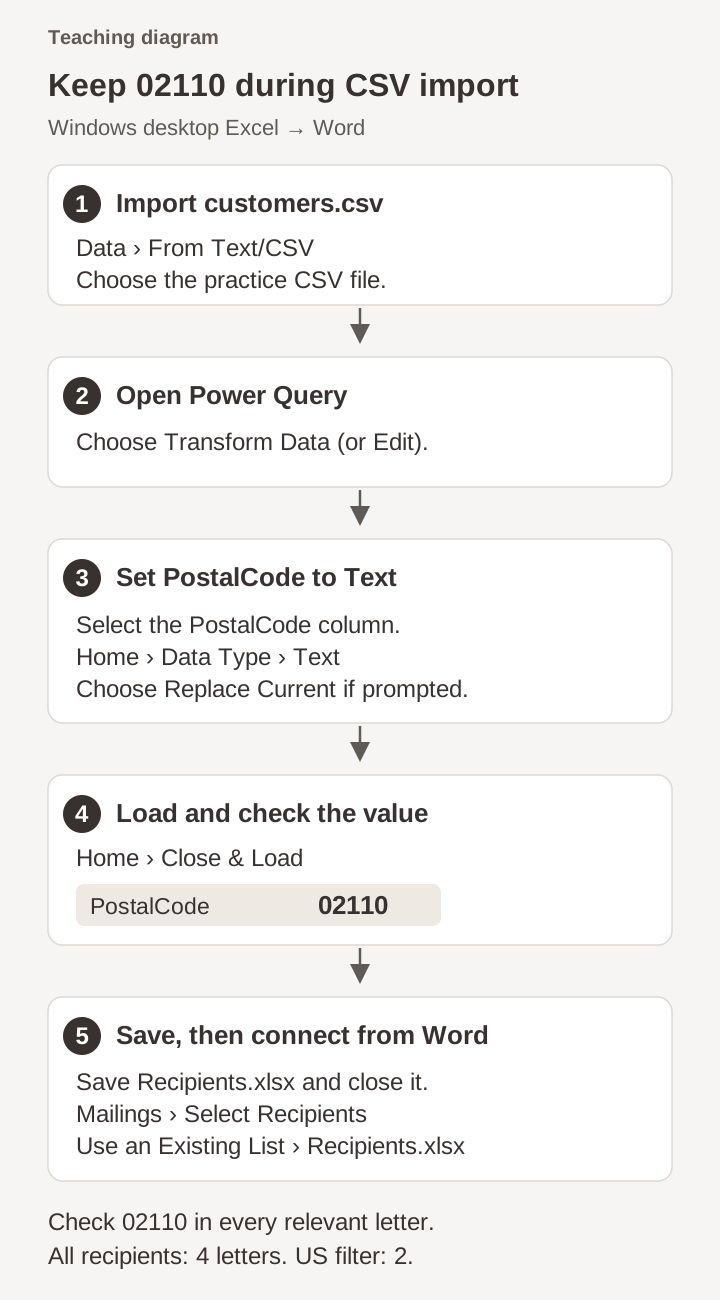
In Excel, choose Data › From Text/CSV and select customers.csv. In the preview, choose Transform Data (Edit in some versions), rather than loading immediately. This opens Power Query so you can set PostalCode’s type before the worksheet is created.
Select the PostalCode column header, then choose Home › Data Type › Text. If Change Column Type appears, choose Replace Current so the text type replaces the earlier automatic conversion. Choose Home › Close & Load. Check that Maya’s 02110 still has five characters, save Recipients.xlsx and close it.
Start a letter with “Dear ” and a paragraph inviting the recipient to the October induction. Save Invitation-Main.docx, then choose Mailings › Start Mail Merge › Letters.
Choose Select Recipients › Use an Existing List, open Recipients.xlsx and select the worksheet with the recipient table. Check the header-row option and the four selected records in Edit Recipient List.
Insert FirstName after Dear and Company in the body. Add City and PostalCode as separate merge fields in the address so you can check each value.
Turn on Preview Results and move through all four recipients. Compare their names, companies and addresses with the source. Check 02110 and the space in the UK postcode.
Filter Country to US. Check which records are selected and their previews. Remove the filter and restore all four recipients before the main merge.
Choose Finish & Merge › Edit Individual Documents › All. Count four letters, check their page boundaries and save Invitation-Merged.docx separately from the main document.
Correct one value in the source and repeat the preview and merge. Compare the new output with the earlier one. Use the invented recipients for this exercise; keep any real mailing separate.
Try it yourself
- Merge all four invented recipients into a separate document. Then filter to the two US recipients and create a second output. Compare both counts and postal codes with Recipients.xlsx.
Show expected result
- The first output contains four letters; the US-only output contains two.
- Maya’s postal code is 02110. The UK postcode keeps its space, and each name and company matches its source row.
If something goes wrong
- 02110 becomes 2110.
- Reimport the original CSV through Transform Data/Edit, set PostalCode to Text and choose Replace Current if asked. Close & Load, check 02110, save the XLSX and reconnect Word. Changing an already shortened worksheet value to Text does not restore its zero.
- The letter shows field names instead of names or addresses.
- Turn on Preview Results. If values still do not appear, check the selected data source and records in Edit Recipient List.
Quick check
Try these questions after the exercise. Check the result in your app before marking the lesson complete.
Choose an answer for all 3 questions to check your understanding.
Optional: try it with Copilot
If you have Copilot, try this after the exercise. Keep the original file and compare its suggestions with your own result.
Suggest wording improvements for this invitation. Preserve FirstName, Company, City and PostalCode as merge fields. List missing information without inventing recipient details or sending letters.
More from Microsoft
These Microsoft guides cover the tools used in this lesson.
Loading your progress…